
Request Printing Refund
Refund Request for Printer or Plotter Malfunction
If a printer malfunctions while printing your work, you can request a refund of charges. Printing the wrong file, too many copies, or other human errors are not eligible for refunds.
You can ask for a refund for a bad printing job if:
- You have used the Rice lab machines to send your plot.
- There are smudges, faded ink, or other issues with ink or paper.
- The plotter ran out of paper and did not reprint your document after the paper change.
Please keep the poor printout or take photos that clearly show the print error.
Request a credit within 7 days of the event by completing the steps below. Charges will be submitted after the end of the month and will appear in Esther. If the charges are in Esther, please submit a ticket to the Help Desk to request a refund.
For more information and support, please contact the Help Desk.
Steps for Requesting a Refund
You can request a refund for a printer malfunction via an online form on print.rice.edu.
You need to be on the Rice campus network, or if you are off campus, you need to be connected via VPN (read more: VPN: Complete Guide to VPN).
The PaperCut service will pop up a login screen. Enter your Rice NetID as your Username and your Rice NetID password as your Password. Select the Login button.

After logging you in, a summary page will appear. Click the Recent Print Jobs tab on the left panel.

Find the print job that malfunctioned and click the Request Refund link in the Status column.

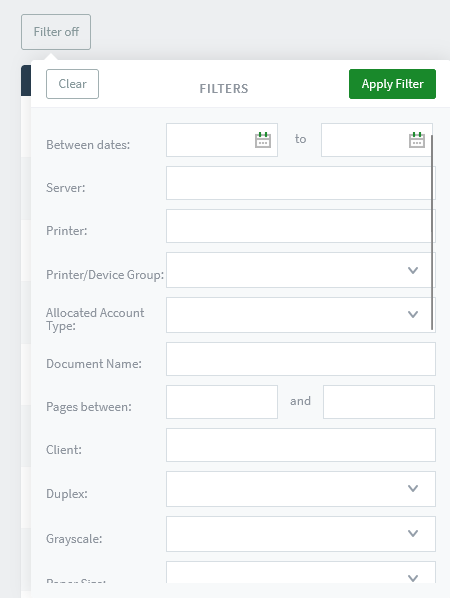
NOTE: If you are not finding the print job that you are looking for, click Filter On and then Clear to view all print jobs. You can search for specific dates or printers.
When you find the print job that malfunctioned, click the Request Refund link in the Status column. You will be given a Refund Request form. In the Refund Details section, select either the Full amount or the Partial amount button. Explain how the printer malfunctioned in the Reason for Request text box. To submit your request, click the Send button.

Your request will be directed to an TS&S system administrator. If approved, a credit will be sent to your Rice Bursar's Office account. In the Status column, the message will be updated to "Refund Pending," and hovering over it will display a summary of your refund request details.
Reimbursement for Print Jobs for Club, Department or Instructor
- The printing fee will appear on your Rice student account, which is managed through the Bursar's Office.
- Each student must pay printing charges the same way they pay other charges listed on their bill.
- The Bursar does not accept purchasing card (P-Card) payments or IDTs (Interdepartmental Transfers) for printing charges.
- To request reimbursement, usually through petty cash, provide a copy of the charges to your organization's treasurer or your department's coordinator.
- If you need a receipt, log into Esther, select the Student Services tab, go to the bottom of the page to Printing Charges. Print the page that shows your charges and use the printout as a receipt.
- Turn in the receipt to your organization ASAP for the fastest reimbursement turnaround.
Need help?
If you need assistance requesting a refund, contact the TS&S Service Desk.